> ## Documentation Index
> Fetch the complete documentation index at: https://docs.tilebox.com/llms.txt
> Use this file to discover all available pages before exploring further.
# Console
> A web interface for exploring your datasets and workflows, managing API keys and team members, and keeping track of your usage of the Tilebox platform.
The [Tilebox Console](https://console.tilebox.com) is a web interface that enables you to explore your datasets and workflows, manage your account and API keys, add collaborators to your team and monitor your usage.
## Datasets
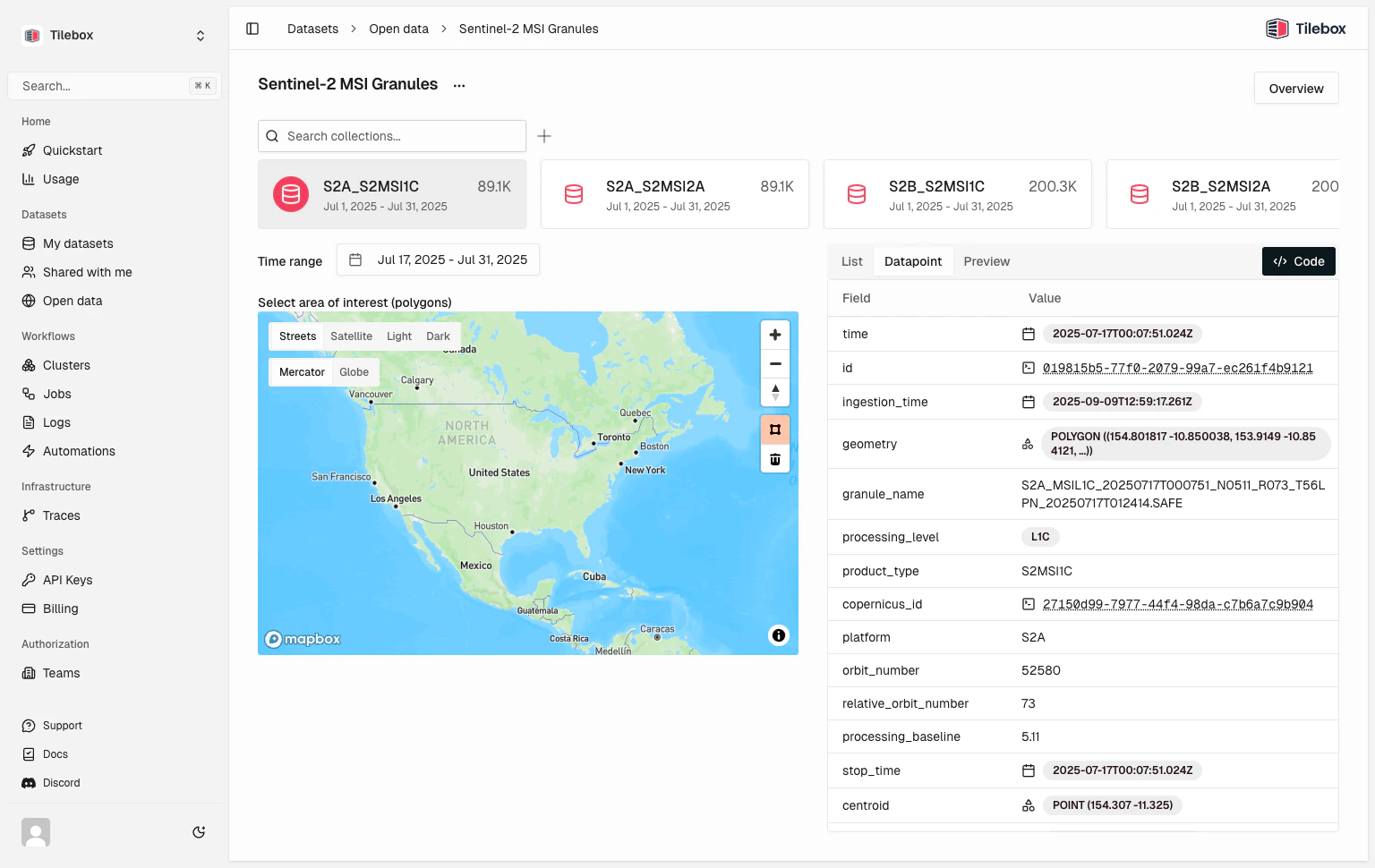
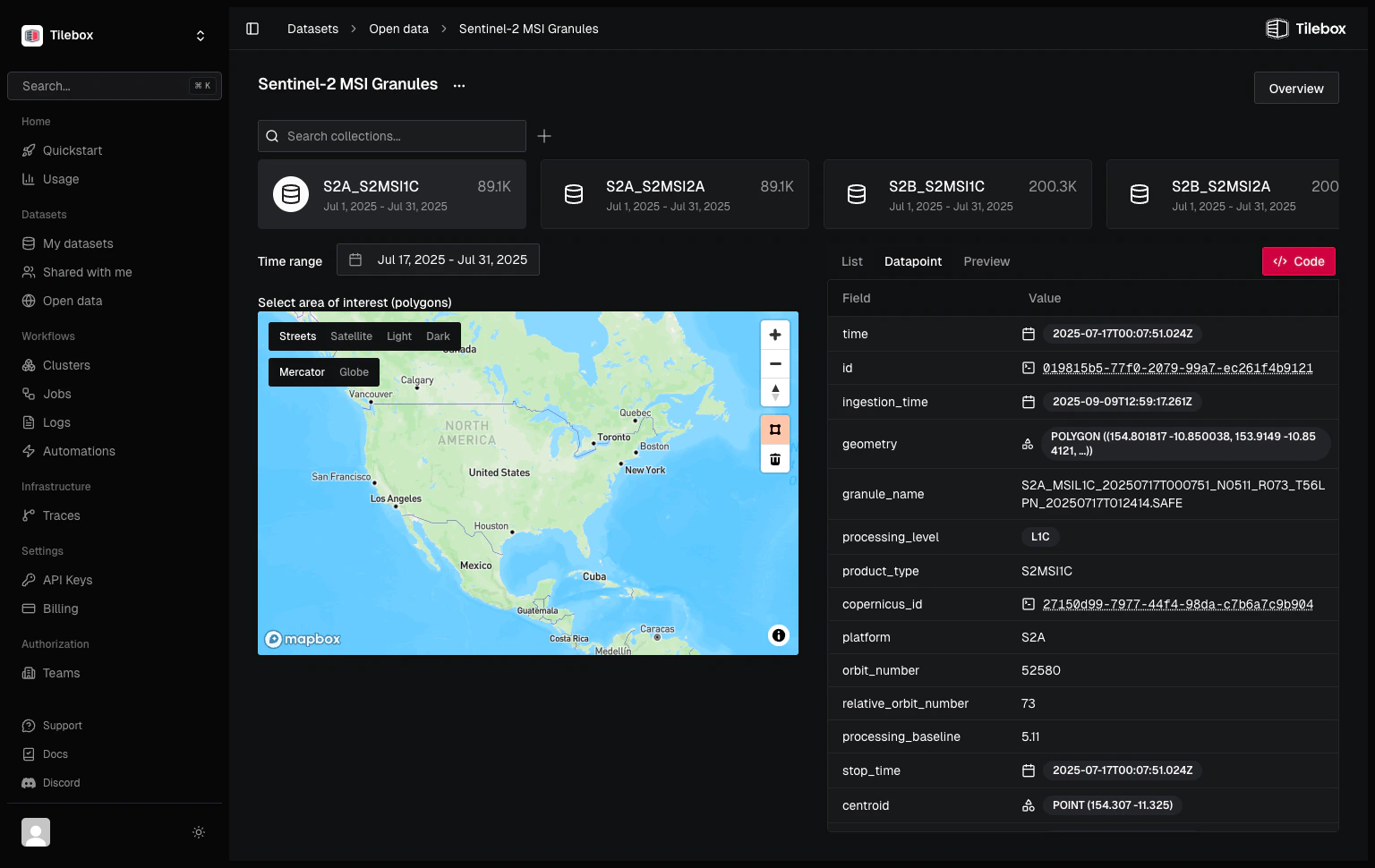
The datasets explorer lets you explore available datasets for your team. You can select a dataset, view its collections, and load data for a collection within a specified time range.
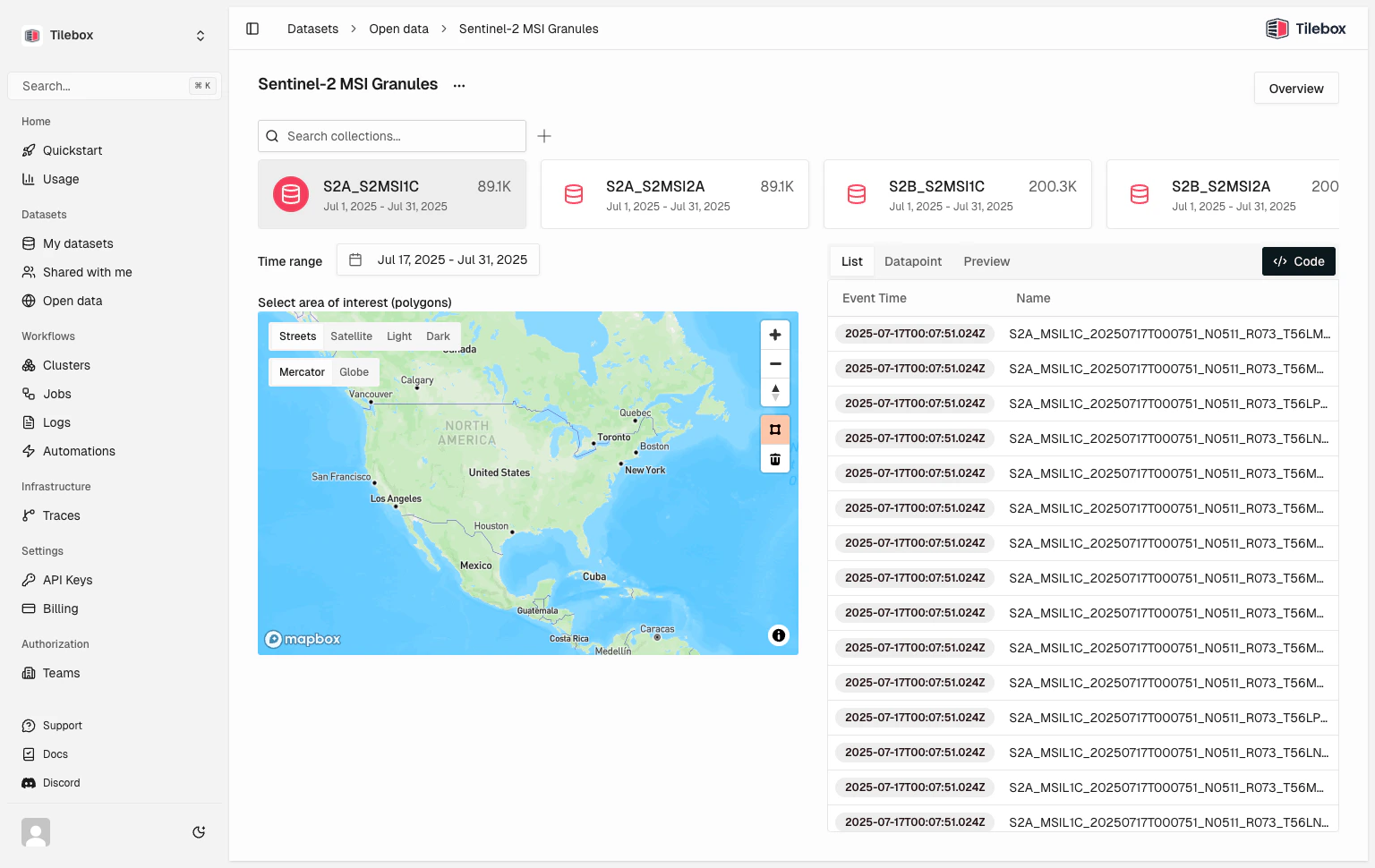
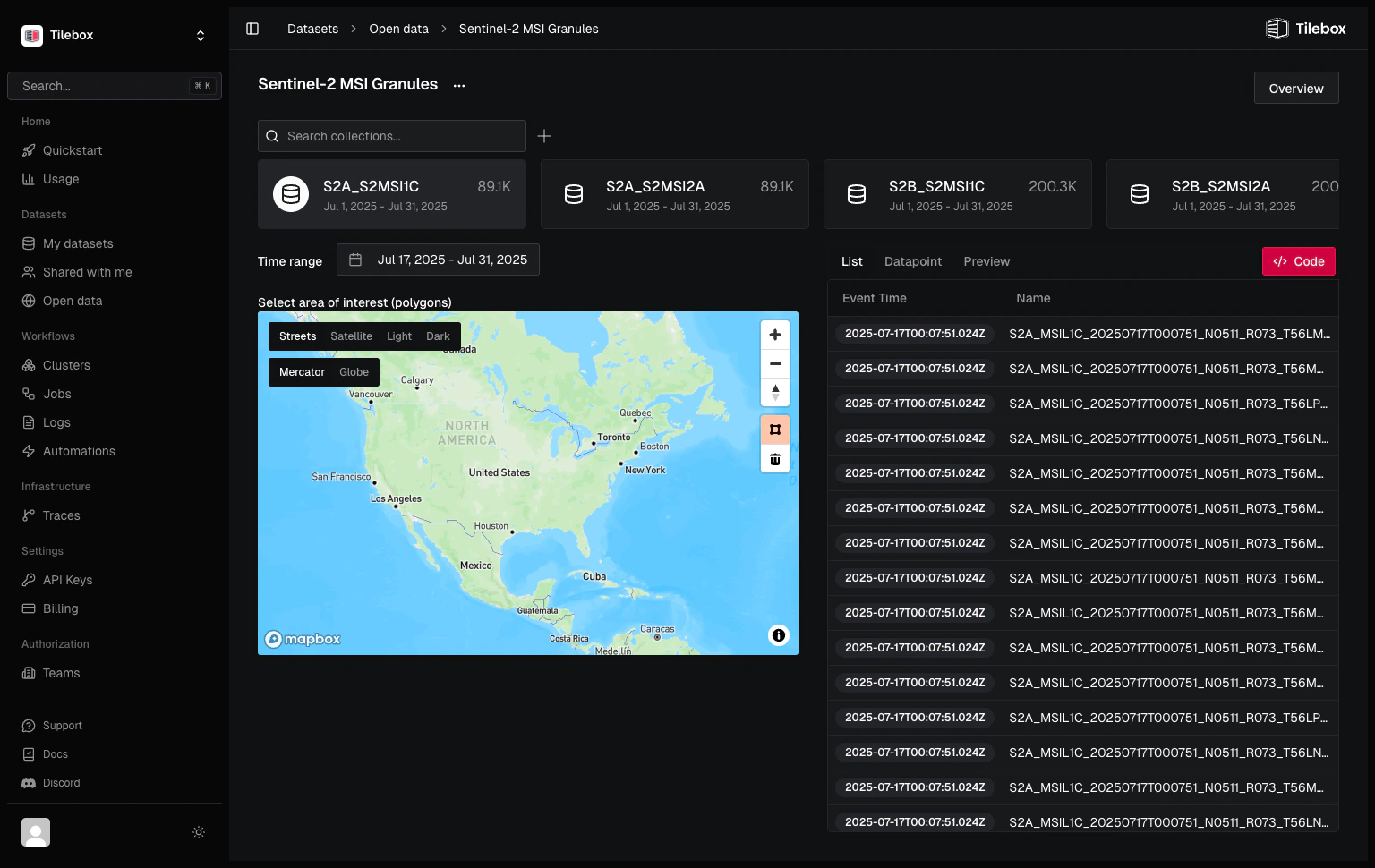 When you click a specific event time in the data point list view, a detailed view of that data point will appear.
 ### Export as Code
After selecting a dataset, collection, and time range, you can export the current selection as a Python code snippet. This will copy a code snippet like the one below to your clipboard.
```python Python theme={"system"}
from tilebox.datasets import Client
client = Client()
datasets = client.datasets()
sentinel2_msi = datasets.open_data.copernicus.sentinel2_msi
data = sentinel2_msi.collection("S2A_S2MSI1C").query(
temporal_extent=("2024-07-12", "2024-07-26"),
show_progress=True,
)
```
```go Go theme={"system"}
ctx := context.Background()
client := datasets.NewClient()
dataset, err := client.Datasets.Get(ctx, "open_data.copernicus.sentinel2_msi")
if err != nil {
log.Fatalf("Failed to get dataset: %v", err)
}
collection, err := client.Collections.Get(ctx, dataset.ID, "S2A_S2MSI1C")
if err != nil {
log.Fatalf("Failed to get collection: %v", err)
}
startDate := time.Date(2024, 7, 12, 0, 0, 0, 0, time.UTC)
endDate := time.Date(2024, 7, 26, 0, 0, 0, 0, time.UTC)
timeInterval := query.NewTimeInterval(startDate, endDate)
var datapoints []*v1.Sentinel2Msi
err = client.Datapoints.QueryInto(ctx,
dataset.ID,
&datapoints,
datasets.WithCollectionIDs(collection.ID),
datasets.WithTemporalExtent(timeInterval),
)
if err != nil {
log.Fatalf("Failed to query datapoints: %v", err)
}
```
Paste the snippet into a [notebook](/sdks/python/sample-notebooks) to interactively explore the
[`xarray.Dataset`](/sdks/python/xarray) that is returned.
## Workflows
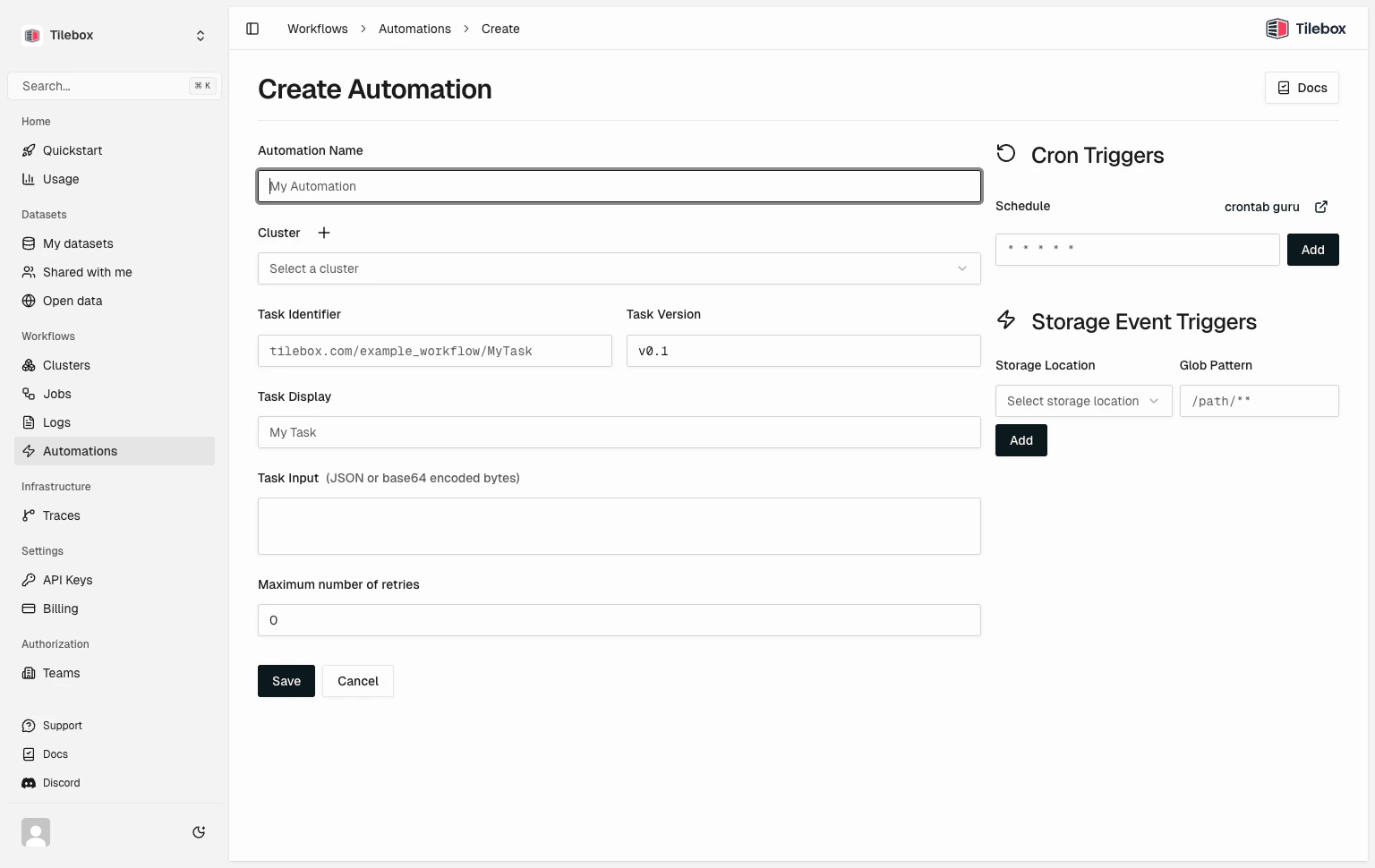
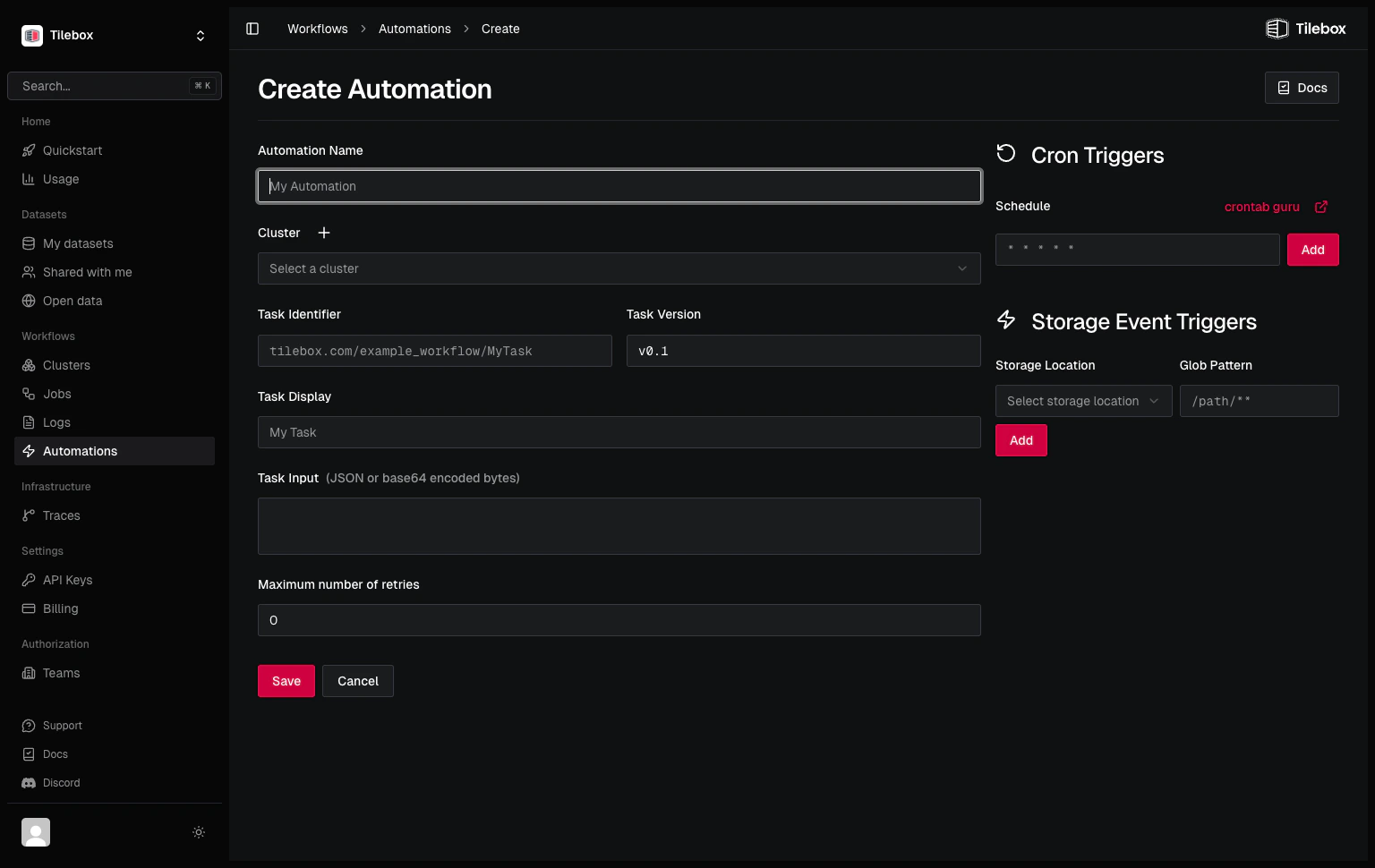
The workflows section of the console allows you to view jobs, create clusters and create near real-time automations.
### Export as Code
After selecting a dataset, collection, and time range, you can export the current selection as a Python code snippet. This will copy a code snippet like the one below to your clipboard.
```python Python theme={"system"}
from tilebox.datasets import Client
client = Client()
datasets = client.datasets()
sentinel2_msi = datasets.open_data.copernicus.sentinel2_msi
data = sentinel2_msi.collection("S2A_S2MSI1C").query(
temporal_extent=("2024-07-12", "2024-07-26"),
show_progress=True,
)
```
```go Go theme={"system"}
ctx := context.Background()
client := datasets.NewClient()
dataset, err := client.Datasets.Get(ctx, "open_data.copernicus.sentinel2_msi")
if err != nil {
log.Fatalf("Failed to get dataset: %v", err)
}
collection, err := client.Collections.Get(ctx, dataset.ID, "S2A_S2MSI1C")
if err != nil {
log.Fatalf("Failed to get collection: %v", err)
}
startDate := time.Date(2024, 7, 12, 0, 0, 0, 0, time.UTC)
endDate := time.Date(2024, 7, 26, 0, 0, 0, 0, time.UTC)
timeInterval := query.NewTimeInterval(startDate, endDate)
var datapoints []*v1.Sentinel2Msi
err = client.Datapoints.QueryInto(ctx,
dataset.ID,
&datapoints,
datasets.WithCollectionIDs(collection.ID),
datasets.WithTemporalExtent(timeInterval),
)
if err != nil {
log.Fatalf("Failed to query datapoints: %v", err)
}
```
Paste the snippet into a [notebook](/sdks/python/sample-notebooks) to interactively explore the
[`xarray.Dataset`](/sdks/python/xarray) that is returned.
## Workflows
The workflows section of the console allows you to view jobs, create clusters and create near real-time automations.
 ## Account
### API Keys
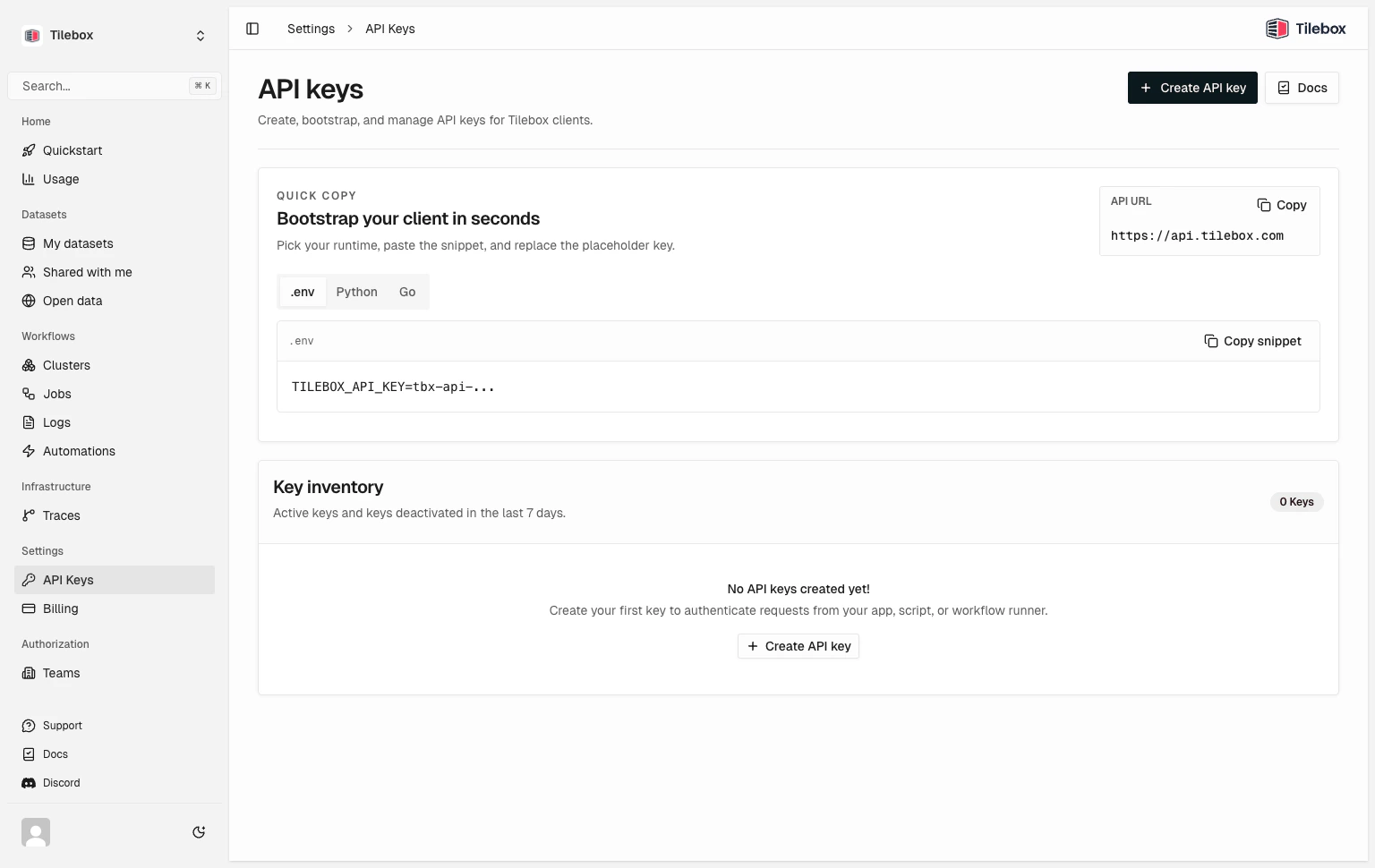
The API Keys page enables you to manage your API keys. You can create new API keys, revoke existing ones, and view currently active API keys.
## Account
### API Keys
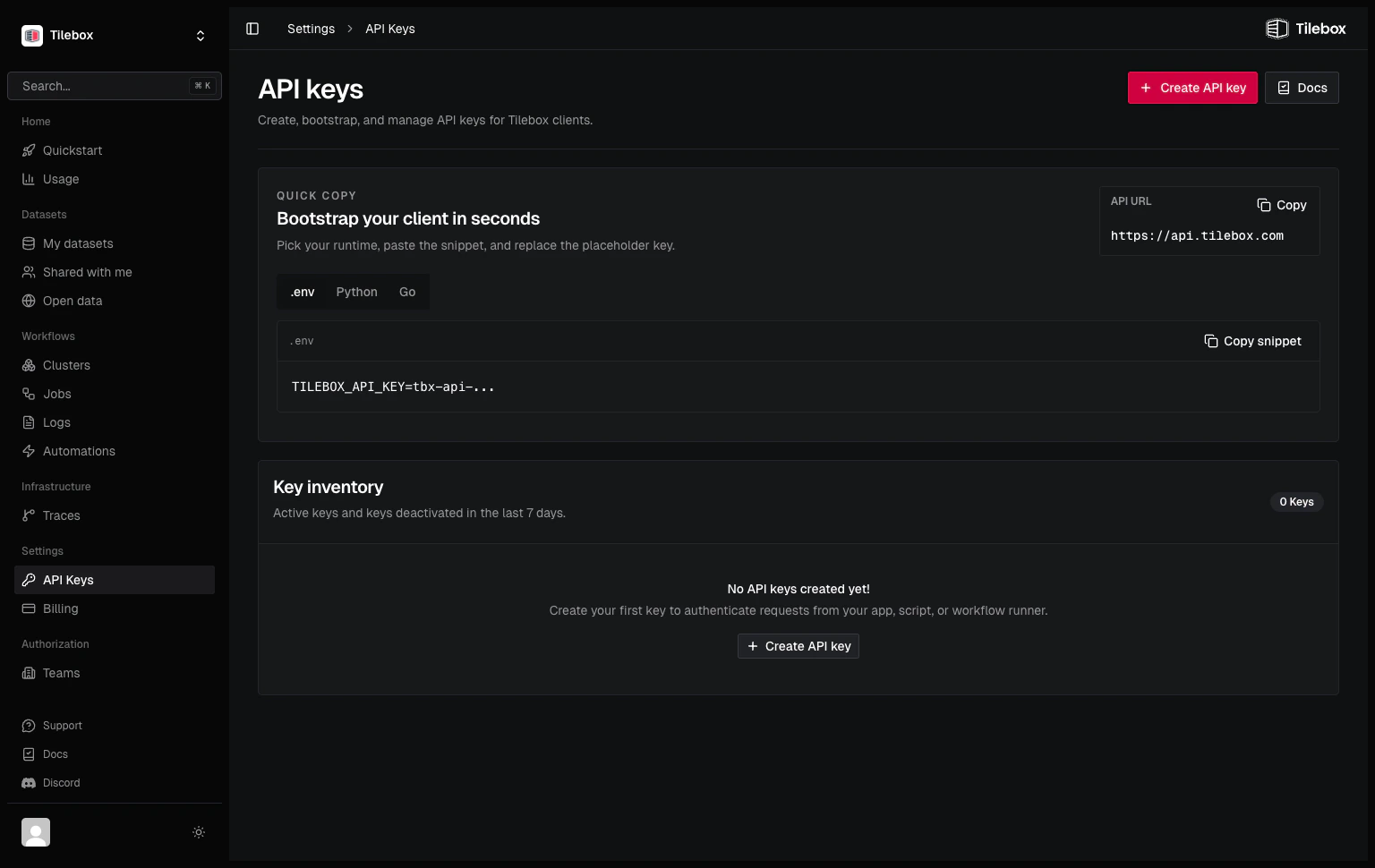
The API Keys page enables you to manage your API keys. You can create new API keys, revoke existing ones, and view currently active API keys.
 ### Usage
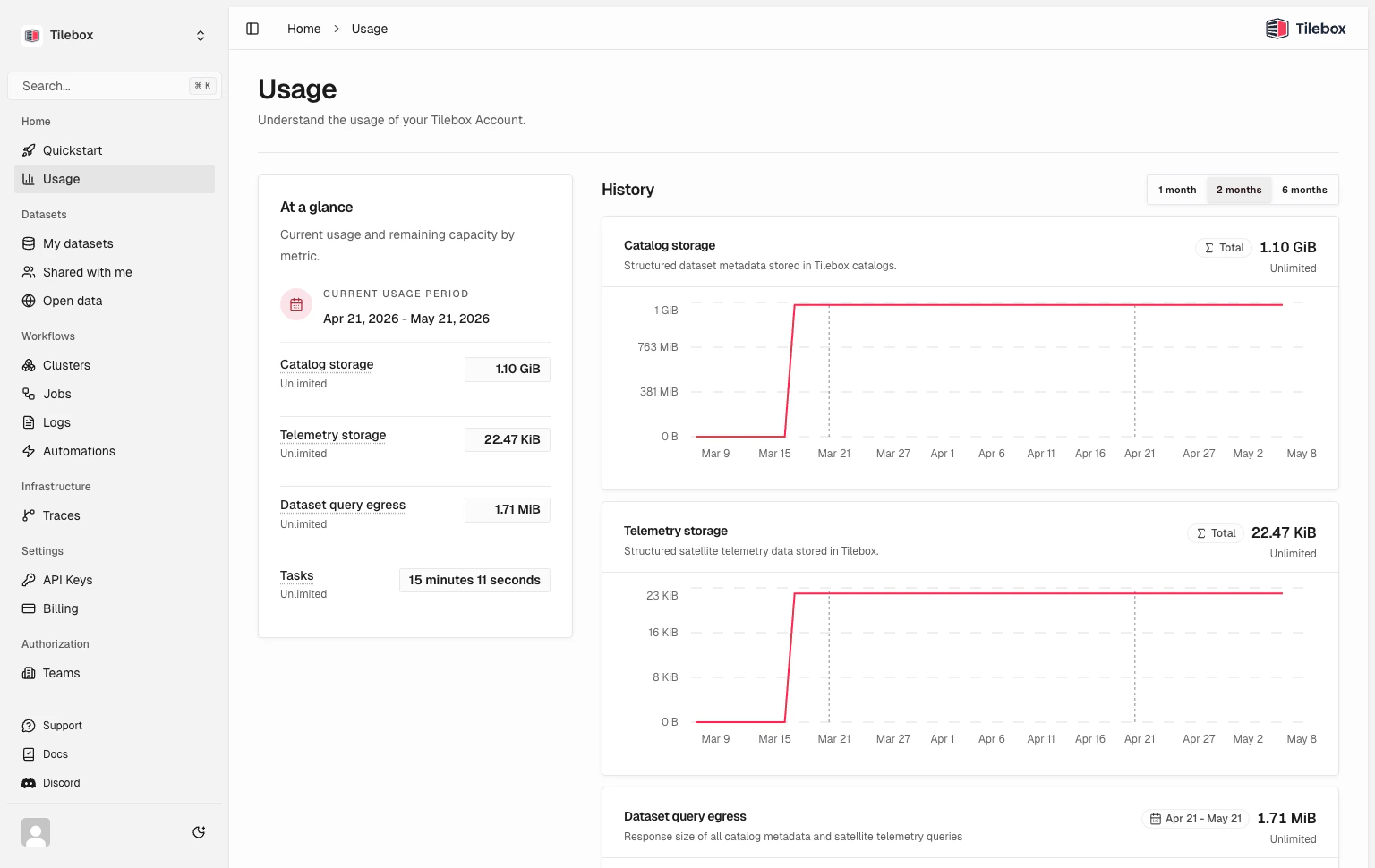
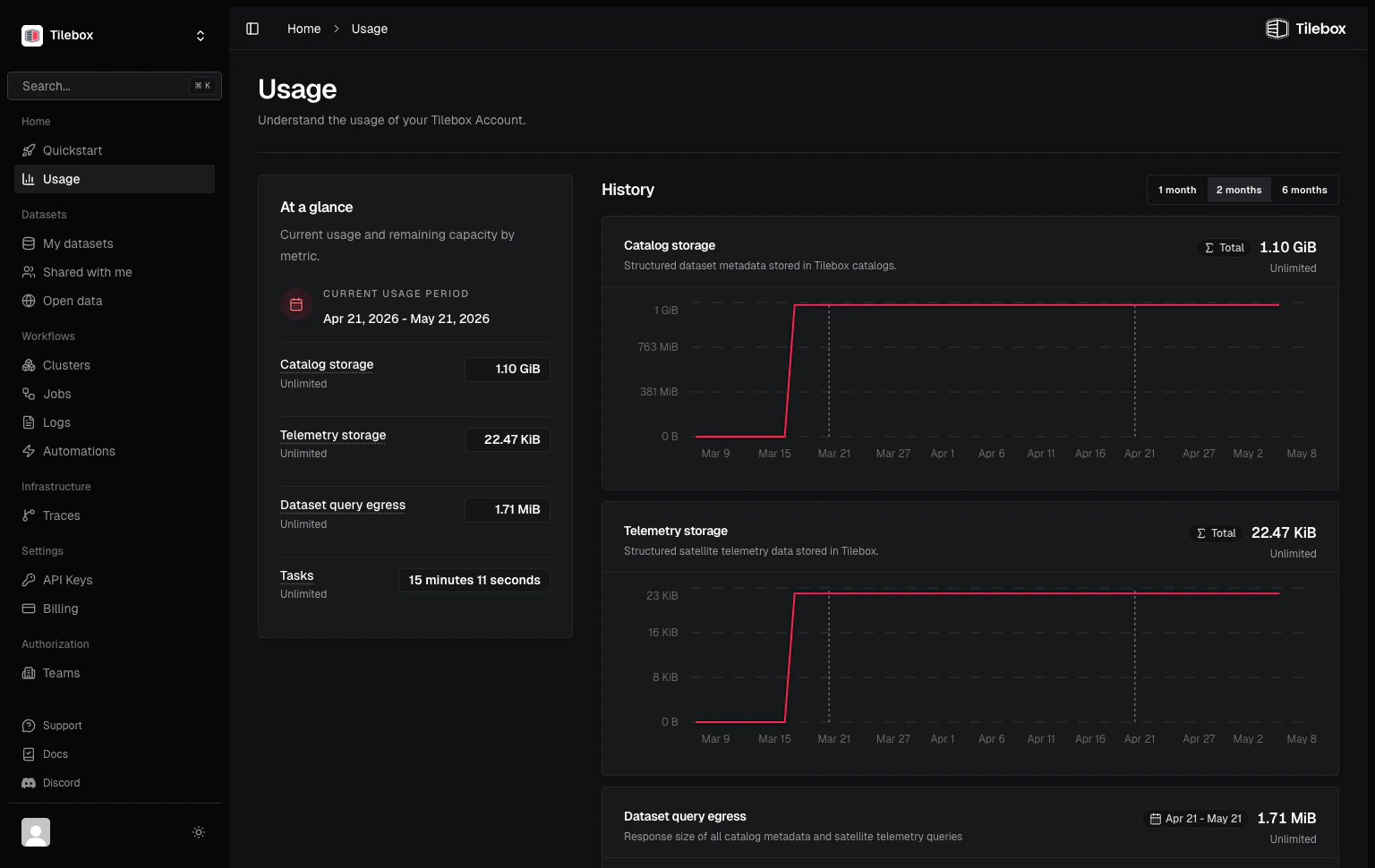
The Usage page allows you to view your current usage of the Tilebox API.
### Usage
The Usage page allows you to view your current usage of the Tilebox API.