> ## Documentation Index
> Fetch the complete documentation index at: https://docs.tilebox.com/llms.txt
> Use this file to discover all available pages before exploring further.
# Installation
> Install the Tilebox Python SDK packages using your preferred package manager to start working with datasets, workflows, and satellite data storage.
## Package Overview
Tilebox offers a Python SDK for accessing Tilebox services. The SDK includes separate packages that can be installed individually based on the services you wish to use, or all together for a comprehensive experience.
Access Tilebox datasets from Python
Workflow client and runner for Tilebox
## Installation
Install the Tilebox python packages using your preferred package manager.
For new projects Tilebox recommend using [uv](https://docs.astral.sh/uv/).
```bash uv theme={"system"}
uv add tilebox-datasets tilebox-workflows tilebox-storage
```
```bash pip theme={"system"}
pip install tilebox-datasets tilebox-workflows tilebox-storage
```
```bash poetry theme={"system"}
poetry add tilebox-datasets="*" tilebox-workflows="*" tilebox-storage="*"
```
```bash pipenv theme={"system"}
pipenv install tilebox-datasets tilebox-workflows tilebox-storage
```
## Setting up a local JupyterLab environment
To get started quickly, you can also use an existing Jupyter-compatible cloud environment such as [Google Colab](https://colab.research.google.com/).
If you want to set up a local Jupyter environment to explore the SDK or to run the [Sample notebooks](/sdks/python/sample-notebooks) locally, install [JupyterLab](https://github.com/jupyterlab/jupyterlab) for a browser-based development environment. It's advised to install the Tilebox packages along with JupyterLab, [ipywidgets](https://ipywidgets.readthedocs.io/en/latest/user_install.html), and [tqdm](https://tqdm.github.io/) for an enhanced experience.
```uv uv theme={"system"}
mkdir tilebox-exploration
cd tilebox-exploration
uv init --no-package
uv add tilebox-datasets tilebox-workflows tilebox-storage
uv add jupyterlab ipywidgets tqdm
uv run jupyter lab
```
### Trying it out
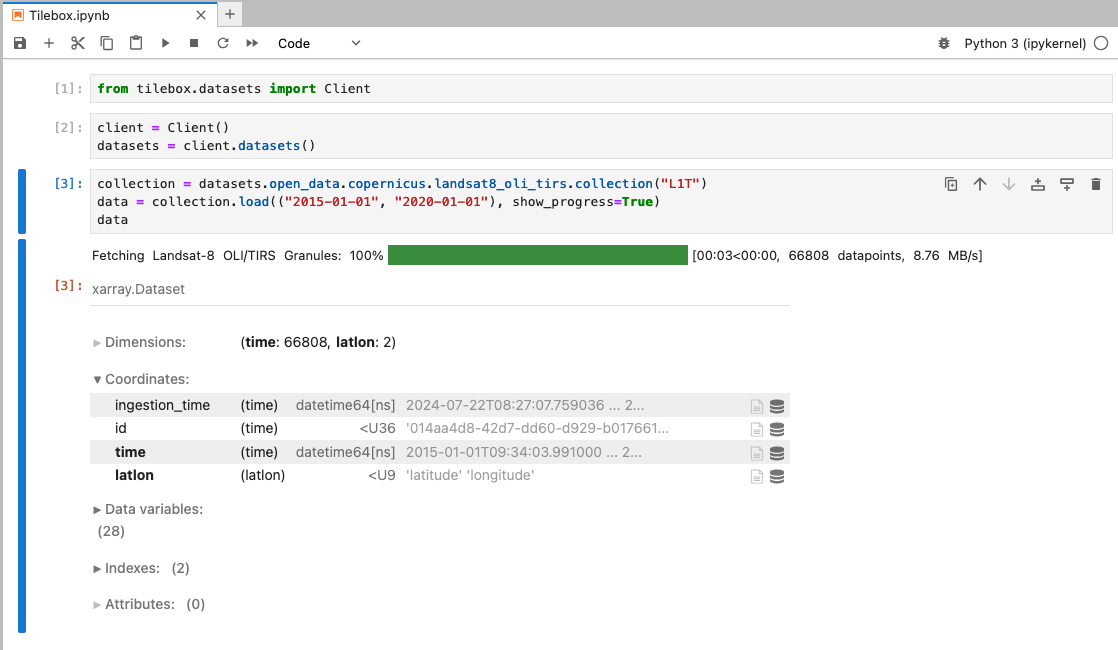
After installation, create a new notebook and paste the following code snippet to verify your installation. If you're new to Jupyter, you can refer to the guide on [interactive environments](/sdks/python/sample-notebooks#interactive-environments).
```python Python theme={"system"}
from tilebox.datasets import Client
client = Client()
datasets = client.datasets()
collection = datasets.open_data.copernicus.landsat8_oli_tirs.collection("L1T")
data = collection.query(temporal_extent=("2015-01-01", "2020-01-01"), show_progress=True)
data
```
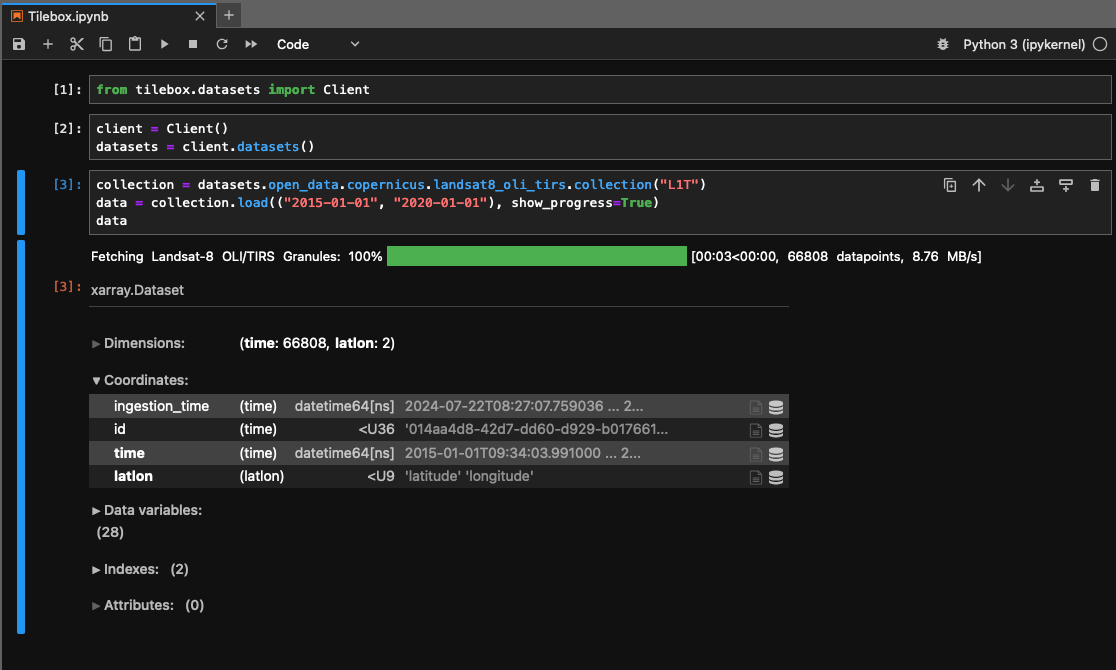
If the installation is successful, the output should appear as follows.