> ## Documentation Index
> Fetch the complete documentation index at: https://docs.tilebox.com/llms.txt
> Use this file to discover all available pages before exploring further.
# Cron triggers
> Schedule recurring workflow jobs using cron expressions so that tasks run automatically at defined intervals, without requiring manual job submission.
## Creating Cron tasks
Cron tasks run repeatedly on a specified [cron](https://en.wikipedia.org/wiki/Cron) schedule.
In Python, use `tilebox.workflows.automations.CronTask` as your task base class instead of the regular `tilebox.workflows.Task`. In Go, register an executable task with the same task identifier as the automation prototype.
```python Python theme={"system"}
from tilebox.workflows import ExecutionContext
from tilebox.workflows.automations import CronTask
class MyCronTask(CronTask):
message: str
def execute(self, context: ExecutionContext) -> None:
# self.trigger is an attribute of the CronTask class,
# which contains information about the trigger event
# that caused this task to be submitted as part of a job
context.logger.info(
"Cron task triggered",
message=self.message,
trigger_time=self.trigger.time,
)
```
```go Go theme={"system"}
type MyCronTask struct {
Message string
}
func (t *MyCronTask) Execute(ctx context.Context) error {
slog.InfoContext(ctx, "Cron task triggered", slog.String("message", t.Message))
return nil
}
```
## Registering a Cron trigger
After implementing a Cron task, register it to be triggered according to a Cron schedule. The Python SDK provides a registration helper, and you can also register cron automations from the Tilebox Console.
When the Cron expression matches, a new job is submitted consisting of a single task instance derived from the Cron task prototype.
```python Python theme={"system"}
from tilebox.workflows import Client
client = Client()
automations = client.automations()
cron_automation = automations.create_cron_automation(
"my-cron-automation", # name of the cron automation
MyCronTask(message="World"), # the task (and its input parameters) to run repeatedly
cron_schedules=[
"12 * * * *", # run every hour at minute 12
"45 18 * * *", # run every day at 18:45
"30 13 * * 3", # run every Wednesday at 13:30
],
)
```
The syntax for specifying the cron triggers is a [CRON expression](https://en.wikipedia.org/wiki/Cron#CRON_expression).
A helpful tool to test your cron expressions is [crontab.guru](https://crontab.guru/).
## Starting a Cron runner
With the Cron automation registered, a job is submitted whenever the Cron expression matches. But unless a [runner](/workflows/concepts/runners) is available to execute the Cron task the submitted jobs remain in a task queue.
Once an [eligible runner](/workflows/concepts/runners#task-selection) becomes available, all jobs in the queue are executed.
```python Python theme={"system"}
from tilebox.workflows import Client, Runner
client = Client()
runner = Runner(tasks=[MyCronTask])
runner.connect_to(client).run_forever()
```
```go Go theme={"system"}
ctx := context.Background()
client := workflows.NewClient()
runner, err := client.NewTaskRunner(ctx)
if err != nil {
slog.ErrorContext(ctx, "failed to create task runner", slog.Any("error", err))
return
}
if err := runner.RegisterTasks(&MyCronTask{}); err != nil {
slog.ErrorContext(ctx, "failed to register tasks", slog.Any("error", err))
return
}
if err := runner.RunForever(ctx); err != nil {
slog.ErrorContext(ctx, "task runner stopped", slog.Any("error", err))
}
```
If this runner runs continuously, its logs may resemble the following:
```plaintext Logs theme={"system"}
Cron task triggered message=World trigger_time=2023-09-25 16:12:00
Cron task triggered message=World trigger_time=2023-09-25 17:12:00
Cron task triggered message=World trigger_time=2023-09-25 18:12:00
Cron task triggered message=World trigger_time=2023-09-25 18:45:00
Cron task triggered message=World trigger_time=2023-09-25 19:12:00
```
## Inspecting in the Console
The [Tilebox Console](https://console.tilebox.com/workflows/automations) provides a straightforward way to inspect all registered Cron automations.
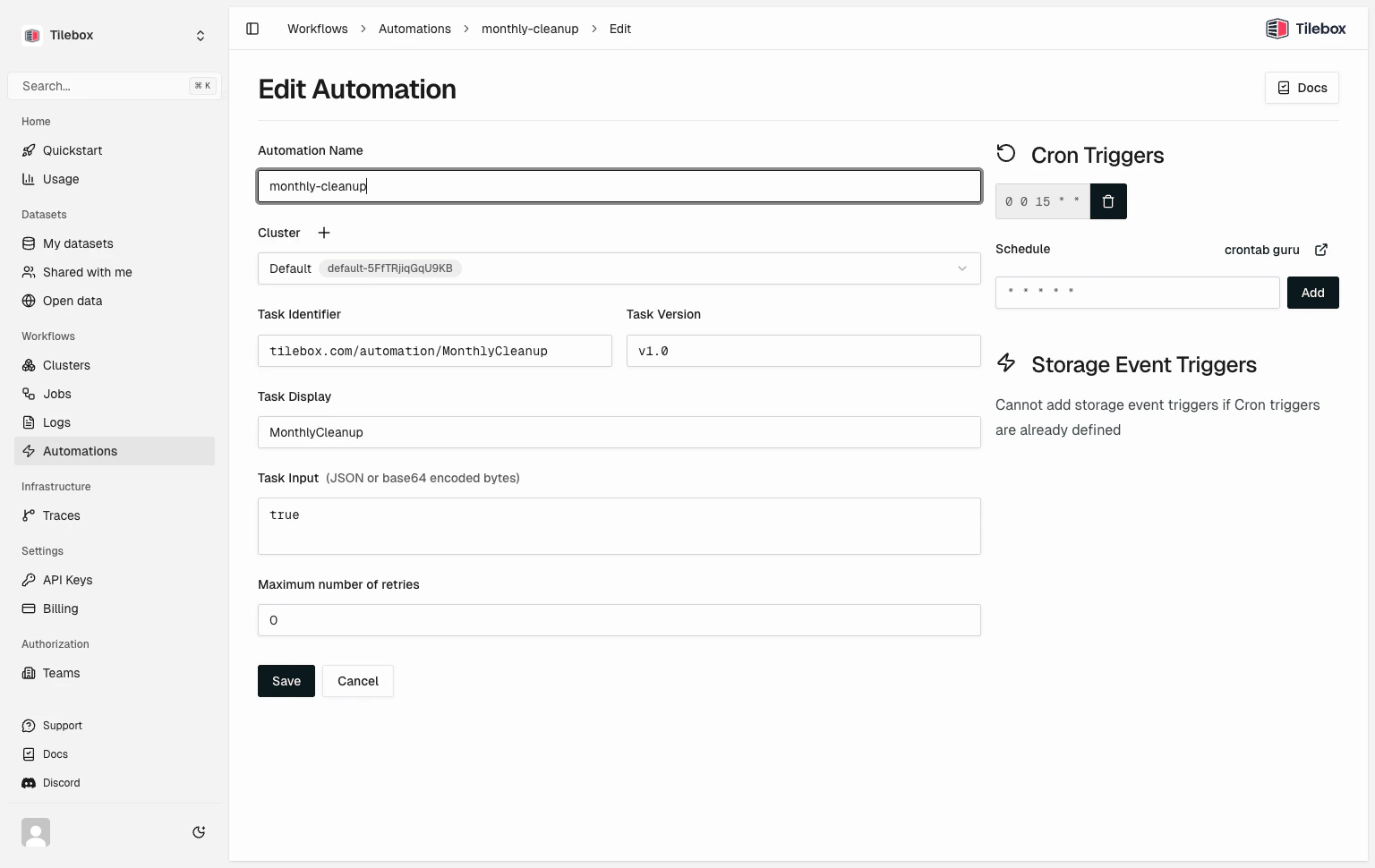
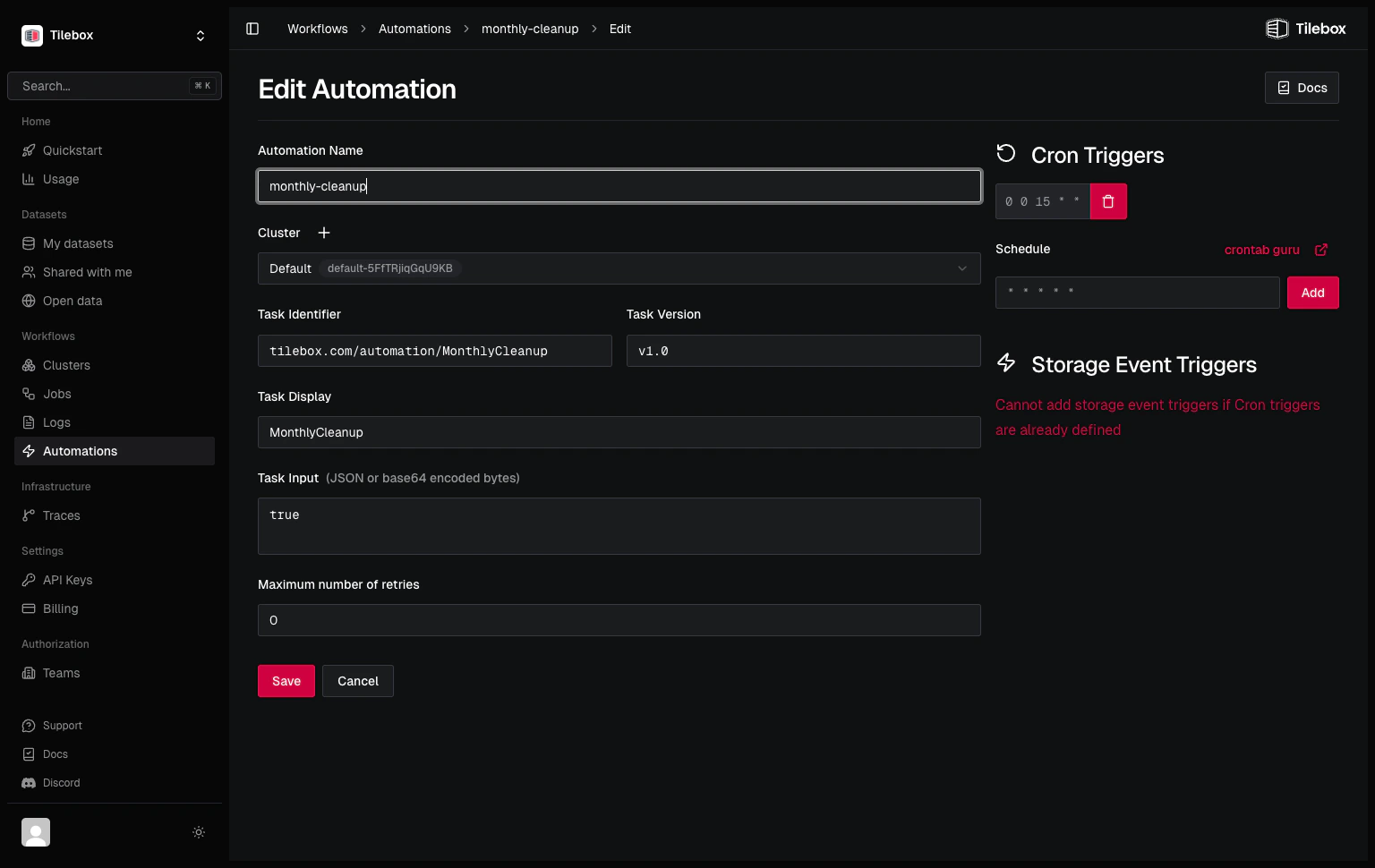 Use the console to view, edit, and delete the registered Cron automations.
You can also inspect registered cron triggers from the SDKs.
```python Python theme={"system"}
from tilebox.workflows import Client
client = Client()
automations = client.automations().all()
for automation in automations:
for trigger in automation.cron_triggers:
print(automation.name, trigger.schedule)
```
```go Go theme={"system"}
ctx := context.Background()
client := workflows.NewClient()
automations, err := client.Automations.List(ctx)
if err != nil {
slog.ErrorContext(ctx, "failed to list automations", slog.Any("error", err))
return
}
for _, automation := range automations {
for _, trigger := range automation.CronTriggers {
slog.InfoContext(ctx,
"cron trigger",
slog.String("automation", automation.Name),
slog.String("schedule", trigger.Schedule),
)
}
}
```
## Deleting Cron automations
To delete a registered Cron automation from Python, use `automations.delete`. You can also delete cron automations from the Tilebox Console. After deletion, no new jobs will be submitted by that Cron trigger. Past jobs already triggered will still remain queued.
```python Python theme={"system"}
from tilebox.workflows import Client
client = Client()
automations = client.automations()
# delete the automation as returned by create_cron_automation
automations.delete(cron_automation)
# or manually by id:
automations.delete("0190bafc-b3b8-88c4-008b-a5db044380d0")
```
## Submitting Cron jobs manually
In Python, you can submit Cron tasks as regular tasks for testing purposes or as part of a larger workflow. To do so, instantiate the task with a specific trigger time using the `once` method.
Submitting a job with a Cron task using `once` immediately schedules the task, and a runner may pick it up and execute it. The trigger time set in the `once` method does not influence the execution time; it only sets the `self.trigger.time` attribute for the Cron task.
```python Python theme={"system"}
from datetime import datetime, timezone
job_client = client.jobs()
# create a Cron task prototype
task = MyCronTask(message="Hello")
# submitting it directly won't work: raises ValueError:
# job_client.submit("manual-cron-job", task)
# instead trigger a cron task with the current time as the trigger time
job_client.submit("manual-cron-job", task.once())
# or specify a trigger time in the past or future
# irrespective of the trigger time, the task will always be scheduled to run immediately
job_client.submit(
"manual-cron-job",
task.once(datetime(2030, 12, 12, 15, 15, tzinfo=timezone.utc))
)
```
Use the console to view, edit, and delete the registered Cron automations.
You can also inspect registered cron triggers from the SDKs.
```python Python theme={"system"}
from tilebox.workflows import Client
client = Client()
automations = client.automations().all()
for automation in automations:
for trigger in automation.cron_triggers:
print(automation.name, trigger.schedule)
```
```go Go theme={"system"}
ctx := context.Background()
client := workflows.NewClient()
automations, err := client.Automations.List(ctx)
if err != nil {
slog.ErrorContext(ctx, "failed to list automations", slog.Any("error", err))
return
}
for _, automation := range automations {
for _, trigger := range automation.CronTriggers {
slog.InfoContext(ctx,
"cron trigger",
slog.String("automation", automation.Name),
slog.String("schedule", trigger.Schedule),
)
}
}
```
## Deleting Cron automations
To delete a registered Cron automation from Python, use `automations.delete`. You can also delete cron automations from the Tilebox Console. After deletion, no new jobs will be submitted by that Cron trigger. Past jobs already triggered will still remain queued.
```python Python theme={"system"}
from tilebox.workflows import Client
client = Client()
automations = client.automations()
# delete the automation as returned by create_cron_automation
automations.delete(cron_automation)
# or manually by id:
automations.delete("0190bafc-b3b8-88c4-008b-a5db044380d0")
```
## Submitting Cron jobs manually
In Python, you can submit Cron tasks as regular tasks for testing purposes or as part of a larger workflow. To do so, instantiate the task with a specific trigger time using the `once` method.
Submitting a job with a Cron task using `once` immediately schedules the task, and a runner may pick it up and execute it. The trigger time set in the `once` method does not influence the execution time; it only sets the `self.trigger.time` attribute for the Cron task.
```python Python theme={"system"}
from datetime import datetime, timezone
job_client = client.jobs()
# create a Cron task prototype
task = MyCronTask(message="Hello")
# submitting it directly won't work: raises ValueError:
# job_client.submit("manual-cron-job", task)
# instead trigger a cron task with the current time as the trigger time
job_client.submit("manual-cron-job", task.once())
# or specify a trigger time in the past or future
# irrespective of the trigger time, the task will always be scheduled to run immediately
job_client.submit(
"manual-cron-job",
task.once(datetime(2030, 12, 12, 15, 15, tzinfo=timezone.utc))
)
```