

Creating Cron tasks
Cron tasks run repeatedly on a specified cron schedule. Define the task that the automation submits, then register its implementation with a runner.Registering a cron trigger
After implementing a cron task, register it with one or more schedules. The Python SDK provides a registration helper, and you can also register cron automations from the Tilebox Console. Each matching schedule submits a new job containing one task instance derived from the cron task prototype.Python
Cron schedule syntax
Cron triggers accept standard five-field expressions. The fields specify the minute, hour, day of the month, month, and day of the week in that order.* for every value, , for a list, - for a range, and / for a step. For example, */15 * * * * runs every 15 minutes, while 0 9-17 * * 1-5 runs hourly from 09:00 through 17:00 on weekdays.
If both day of month and day of week contain specific values, a trigger runs when either field matches. For example, 0 9 1 * MON runs at 09:00 on the first day of every month and on every Monday.
Schedules without an explicit timezone use UTC. Prefix a schedule with CRON_TZ=<timezone> to interpret it in an IANA timezone:
Schedule helpers
You can replace a five-field expression with one of these helpers. Helpers use UTC unless you add aCRON_TZ prefix.
Timezone prefixes also work with helpers:
Schedule examples
Starting a cron runner
Cron tasks run on any regular runner that has the task registered. Keep at least one such runner available to execute jobs submitted by the automation.Python
Logs
Inspecting in the Console
The Tilebox Console provides a straightforward way to inspect all registered Cron automations.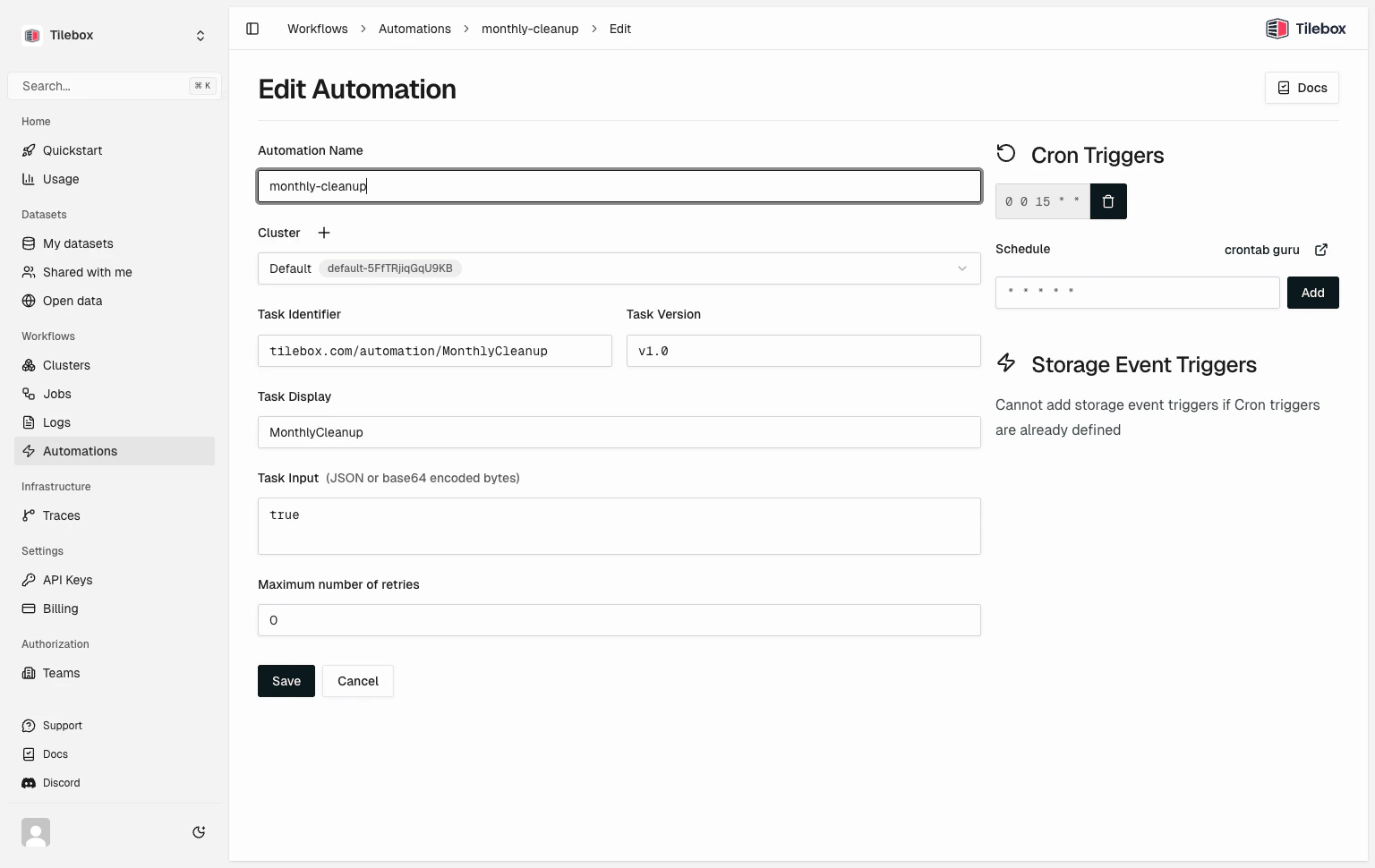
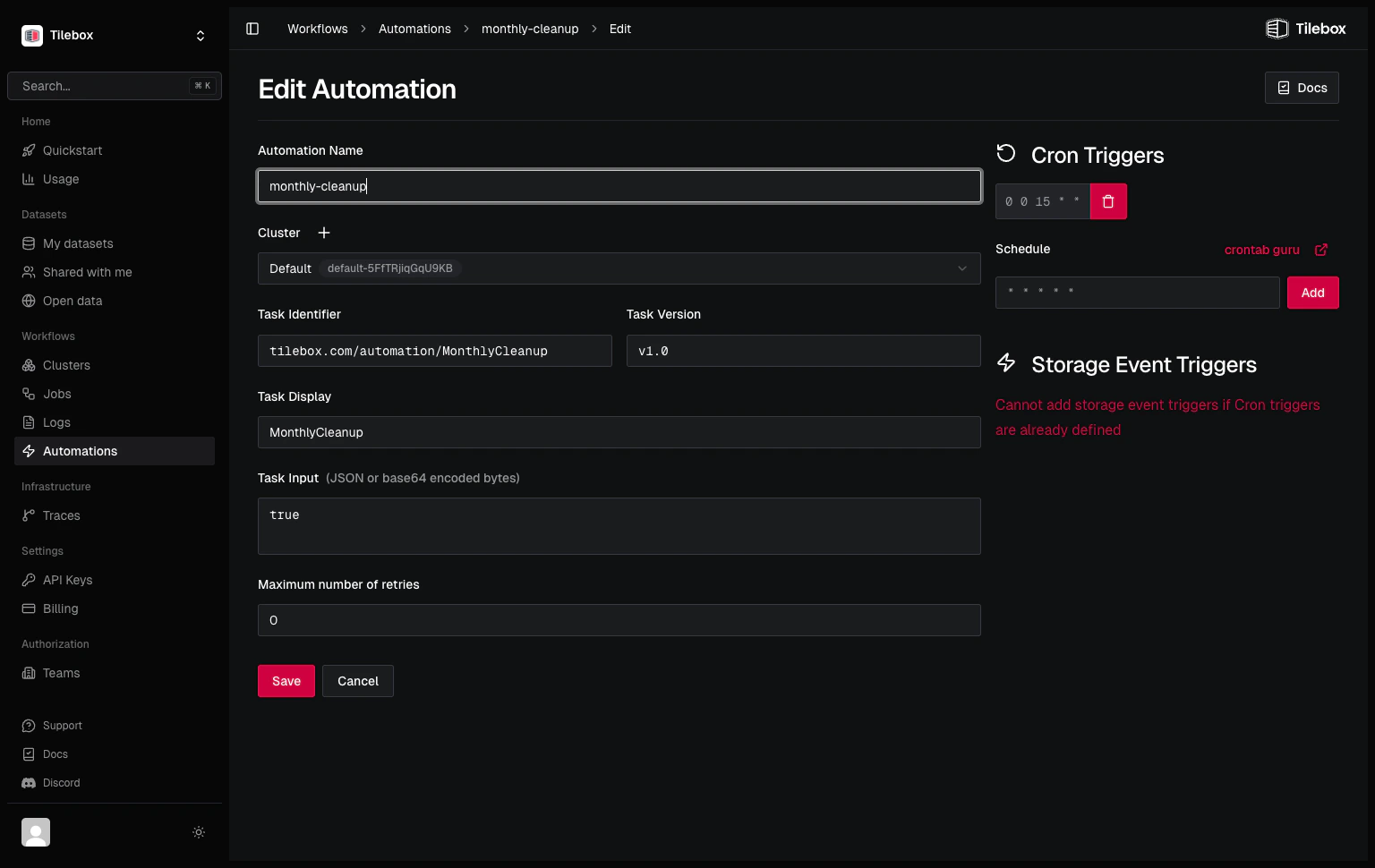
Deleting Cron automations
To delete a registered Cron automation from Python, useautomations.delete. You can also delete cron automations from the Tilebox Console. After deletion, no new jobs will be submitted by that Cron trigger. Past jobs already triggered will still remain queued.
Python
Submitting Cron jobs manually
In Python, you can submit Cron tasks as regular tasks for testing purposes or as part of a larger workflow. To do so, instantiate the task with a specific trigger time using theonce method.
Submitting a job with a Cron task using
once immediately schedules the task, and a runner may pick it up and execute it. The trigger time set in the once method does not influence the execution time; it only sets the self.trigger.time attribute for the Cron task.Python